Label Printer Handbook
  • Home
  • Reviews
    • Office label makers
    • Shelf and product label printers
    • Shipping label printers
  • Best
    • Office label makers
    • Shelf and product label printers
    • Shipping label printers
  • Guides
    • Office label makers
    • Shelf and product label printers
    • Shipping label printers
  • Comparisons
    • Office label makers
    • Shelf and product label printers
    • Shipping label printers
  • Favorites
Search

DYMO LabelManager 160 vs 280 for repeated office labels

For ten identical cabinet labels, the 280 can count copies while the 160 repeats the current wording one print at a time. For ten different folders, the deciding factor is where the names are stored.

Cabinet labels and a set of named office folders

Which model fits your setup?

Shelf-side entry

DYMO LabelManager 160

Controls
Built-in QWERTY keyboard
Refill format
DYMO D1 tape
View details ↓ Check price on Amazon↗
Shared folder runs

DYMO LabelManager 280

Controls
Built-in keyboard or USB computer connection
Refill format
DYMO D1 tape
View details ↓ Check price on Amazon↗

Ten cabinet doors with the same warning

Suppose every door needs “Close after use.” Proof one strip at the cabinet before committing the rest of the tape. Both models can leave the original wording intact. The difference is how often someone has to operate the printer.

After the first good label LabelManager 160 LabelManager 280
Nine doors remain Leave the wording in place. Print and cut each repeat. Hold Print and select nine copies. The count returns to one when the run finishes.
One door needs a different warning Edit the current wording and proof it before repeating. Finish the identical group first. Enter the exception separately to avoid multiplying the wrong wording.
What still takes staff time? Separating, checking and applying each label. A copy setting only handles the repeated print command.

Ten folders with different names

Ten copies of “Adams” give you nine mistakes if the rest of the folders belong to different people. The useful question is where those names already live.

The list is on paper beside the cabinet
The 160 can travel with the list. Type one name, check the spelling, print and match it to the folder before starting the next. A computer adds little if the work ends there.
The names are already on a shared computer
With the 280, copy the next name into the approved desktop layout. Check the longest name and two similar names before continuing. Save the layout where the next staff member can find it.

What transfers if you change printers?

Both accept 6, 9 and 12 mm DYMO D1 cassettes. Before paying for the 280, hold a strip of half-inch tape against the cabinet and read it from the aisle. If the characters need to be taller than the strip, both models have the same limit. Choose a wider-format printer for those signs. If the strip reads well, you can keep the existing D1 stock and choose between these two on workflow. The power arrangements differ. The 160 can run on six AAA alkaline batteries. The 280 uses its own rechargeable pack and charging adapter. Keep the 280’s data cable at the computer and its charger where staff return it.

For a machine that lives on a cart, see the 160 shelf-and-file review. If a shared layout is the reason for buying, check the 280 software and charging workflow before ordering.
Shelf-side entry

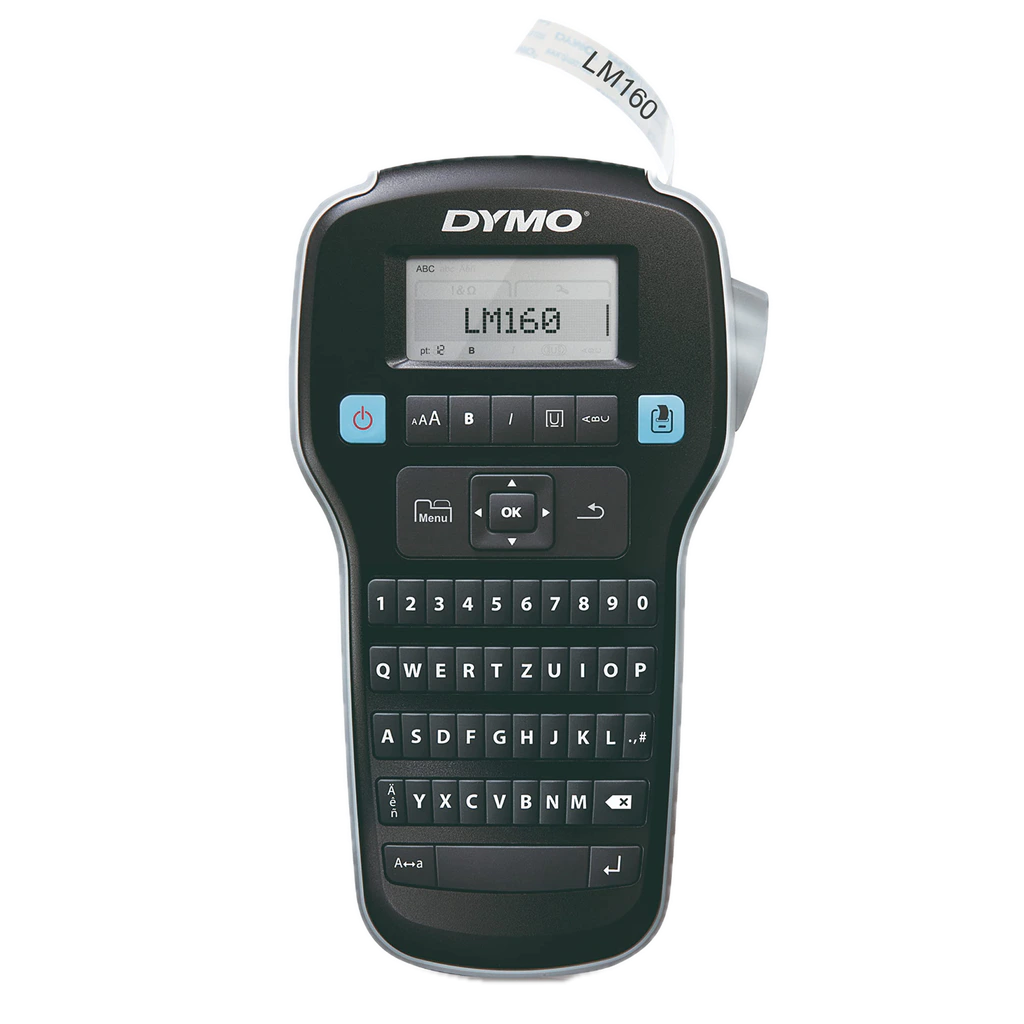
DYMO LabelManager 160

Check price on Amazon↗

A handwritten list can travel with the printer. Work down it one folder at a time and apply each name before typing the next.

Tape widths
6, 9 or 12 mm
  • Repeat the last wording with another press of Print.

Best if

  • Staff name items as they encounter them and can keep spare AAA cells on the cart.

Skip if

  • A typed list would have to be copied by hand into every new label.
Specifications
Product typeHandheld tape label maker
InputBuilt-in QWERTY keyboard
Label mediaDYMO D1 tape
Accepted tape widths6, 9 or 12 mm
Power supplySix AAA alkaline batteries or optional adapter, sold separately
Reviewed US packageBlack single-pack machine, black-on-white 12 mm × 10 ft D1 starter tape and quick-start guide
Shared folder runs

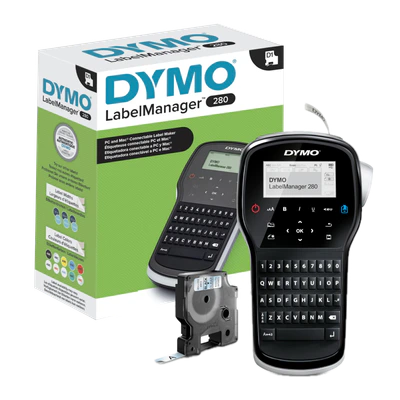
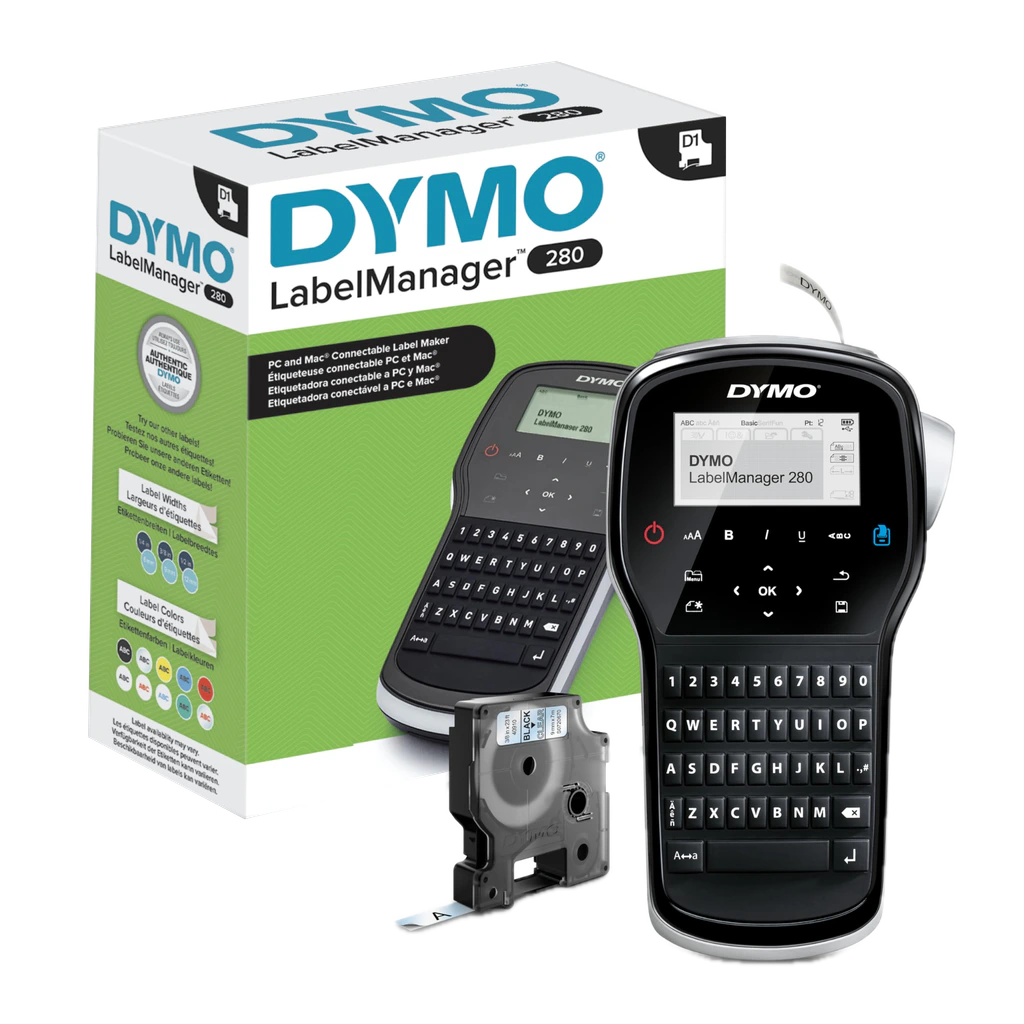
DYMO LabelManager 280

Check price on Amazon↗

Start with an approved office file when each folder needs a different name. For identical doors, leave the computer at the desk and choose the copy count on the handheld.

Tape widths
6, 9 or 12 mm
  • The handheld accepts up to ten copies per print command.

Best if

  • A colleague needs to reopen the same design for the next filing cycle.

Skip if

  • The office blocks software installation and seldom prints identical runs.
Specifications
Product typeHandheld tape label maker
InputBuilt-in keyboard or USB computer connection
Label mediaDYMO D1 tape
Accepted tape widths6, 9 or 12 mm
Power supplyRechargeable lithium-ion pack and charging adapter
Reviewed US packageBlack 280, battery pack, USB data cable, black-on-white 12 mm × 10 ft starter tape and quick-start materials. Adapter reported with this offer

Product Comparison

Feature DYMO LabelManager 160 Review DYMO LabelManager 280 Review
Product Image
DYMO LabelManager 160 Review
DYMO LabelManager 280 Review
Category Office label makers Office label makers
Product type Handheld tape label maker Handheld tape label maker
Input Built-in QWERTY keyboard Built-in keyboard or USB computer connection
Label media DYMO D1 tape DYMO D1 tape
Accepted tape widths 6, 9 or 12 mm 6, 9 or 12 mm
Power supply Six AAA alkaline batteries or optional adapter, sold separately Rechargeable lithium-ion pack and charging adapter
Reviewed US package Black single-pack machine, black-on-white 12 mm × 10 ft D1 starter tape and quick-start guide Black 280, battery pack, USB data cable, black-on-white 12 mm × 10 ft starter tape and quick-start materials. Adapter reported with this offer
Amazon prices Check price on Amazon↗ Check price on Amazon↗

Which step will your team repeat?

Typing names as we go

Keep a 160 near the shelves and proof the longest name on the smallest tab.

See the 160 file-tab workflow

Reusing approved layouts

Choose the 280 if you have a supported office computer, installation access and a home for the charger.

See the 280 shared-desk setup

×
Label Printer Handbook

Printer reviews and buying guides for filing, labeling merchandise and packing orders.

Browse the guide

  • Home
  • Reviews
  • Best
  • Guides
  • Comparisons
  • Favorites

Printer categories

  • Office label makers
  • Shelf and product label printers
  • Shipping label printers
As an Amazon Associate I earn from qualifying purchases.
About Contact Privacy policy Image credits Affiliate disclosure